
A Search Template stores search queries with placeholders. The stored queries are called base queries.
The placeholders in the base queries are used as variables which you can replace with actual search keywords during runtime. You can save multiple base queries in a search template and use them to run search queries or create dashboard widgets.
My Search Templates contains all the search templates you have created or cloned. The Search Templates by vendors are grouped under Vendor Search Templates and those shared by other users are grouped under Shared Search Templates.
Go to Search Templates from the navigation bar.
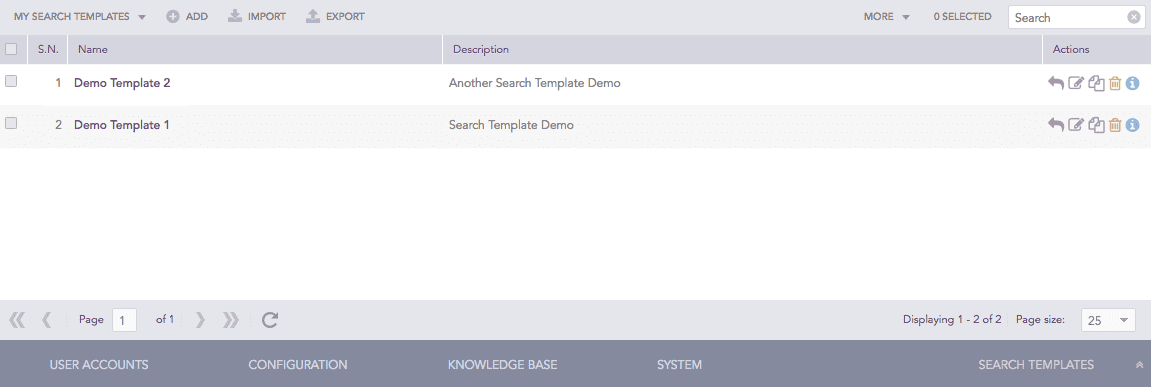
Search Templates
Click Add.
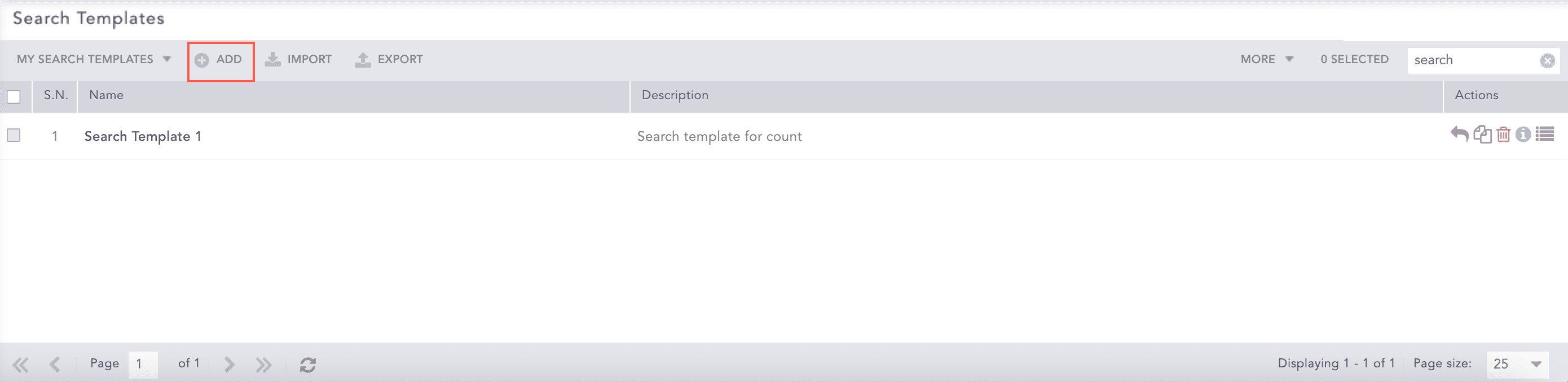
Search Templates
Provide a Name and a Description.
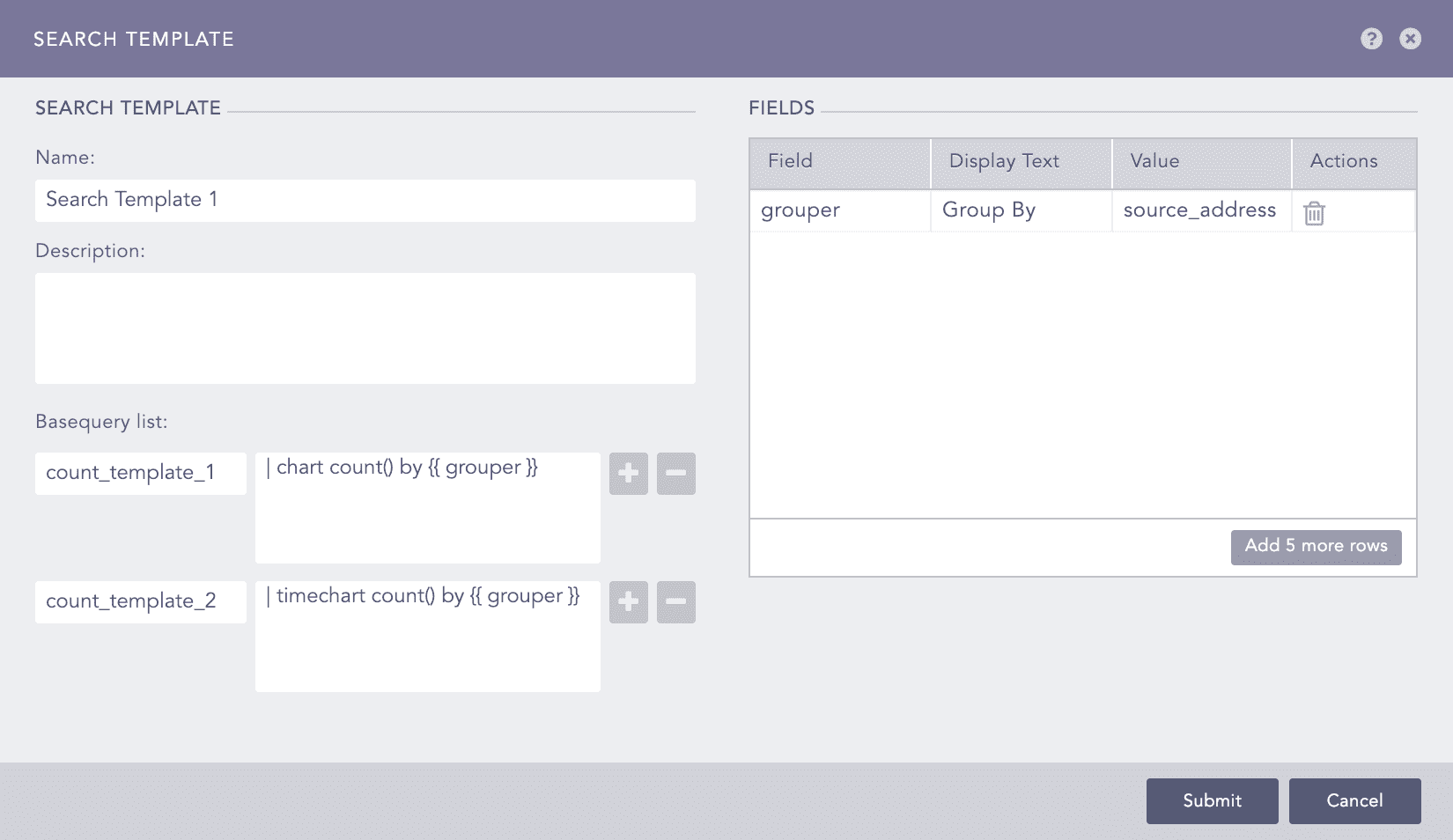
Adding a Search Template
Enter the base queries in the Basequery list section. Enter a name and a query for each base query.
Note
Use {{ and }} to enclose placeholders in the queries.
Click the Plus icon to add new base query fields and the Minus icon to remove the corresponding field.
In the Fields section, enter a Field used as a placeholder in any of the base queries, a Display Text for the field, and a default Value.
Note
You can provide multiple values for Field, Display Text, and Value.
Click Submit.
Note
Click the ? icon near the top-right corner to get help on the inputs.
Go to Search Templates from the navigation bar.
Select the templates to export.
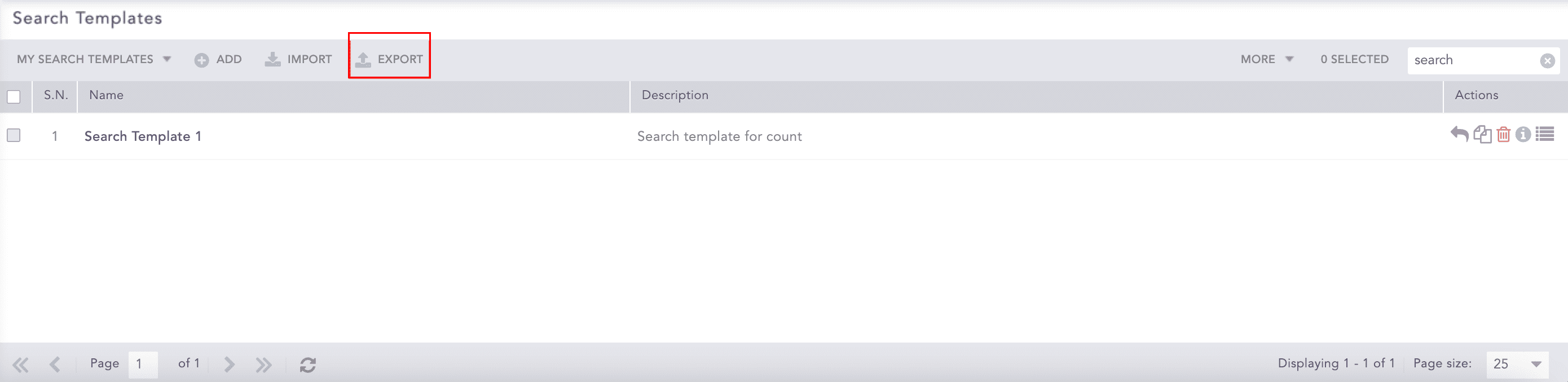
Search Templates
Click Export.
Save the exported template.
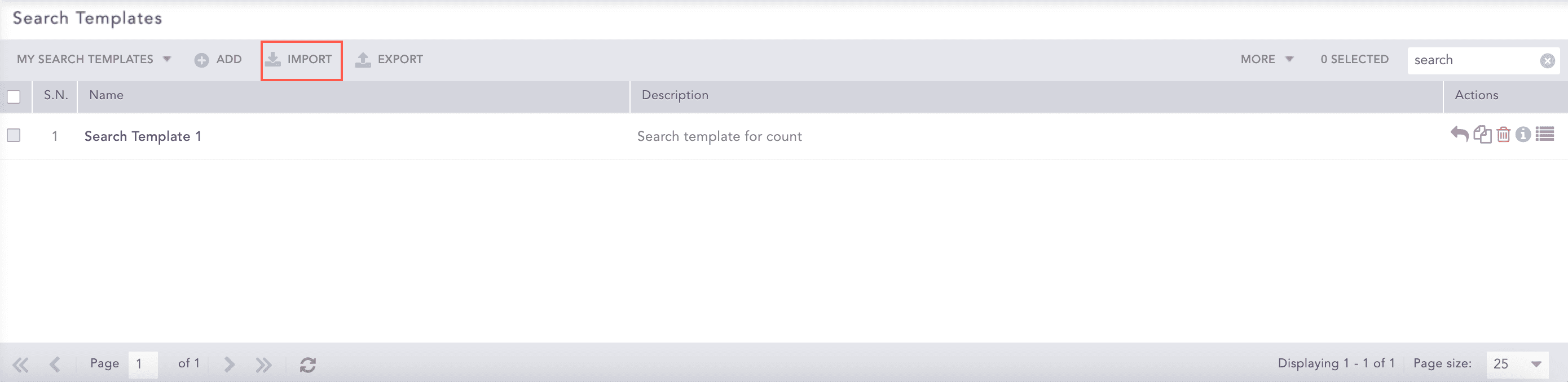
Go to Search Templates from the navigation bar.
Search Templates
Click Import.
Browse for the template package file.
Click Upload.
Go to Search Templates from the navigation bar.
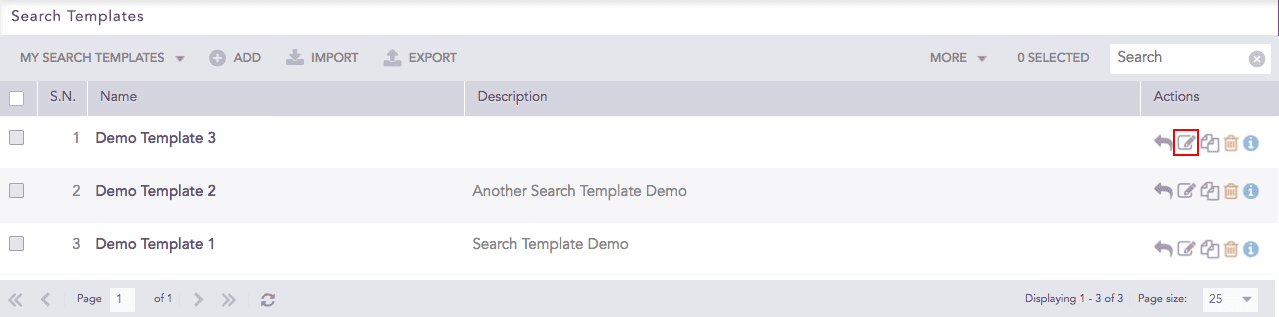
Click the Edit icon in the Actions column of the search template.
Editing a Search Template
Update the information.
Click Submit.
You can share a search template with all the users in the system and give them the read, edit, or full permissions. Any changes made in the search templates are visible to all the shared users.
Each parameter in a shared search template is categorized into three types:
Global parameters can be changed only by the users with the Edit or Full permissions. Changes in the global parameters are reflected for all the users using the shared search template. The following parameters are global:
The name, description, queries, and field values of the search template.
Title and order of tabs, including creation and deletion of tabs.
Title, query, dimensions, and positions of widgets, including addition and deletion of widgets.
Personalized parameters can be changed by all the users. However, the changes in the personalized parameters are reflected only for the users making the change. The following parameters are personalized:
The updateable parameters
Selected repos
Time range
Hybrid parameters can be changed by all the users. If the user changing the parameters has the Edit or Full permissions, the changes are reflected for all the users. However, if the user has only the Read permission, the changes are reflected only for the user making the change. The following parameters are hybrid:
Chart types of widgets
Legends and legend labels of widgets
Trend state of widgets
Note
If a user with the Edit or Full permissions changes a hybrid parameter, the changes made by all other users are overridden.
A user with the Full permission can also Share and Delete a shared search template.
To share a search template:
Go to Search Templates from the navigation bar.
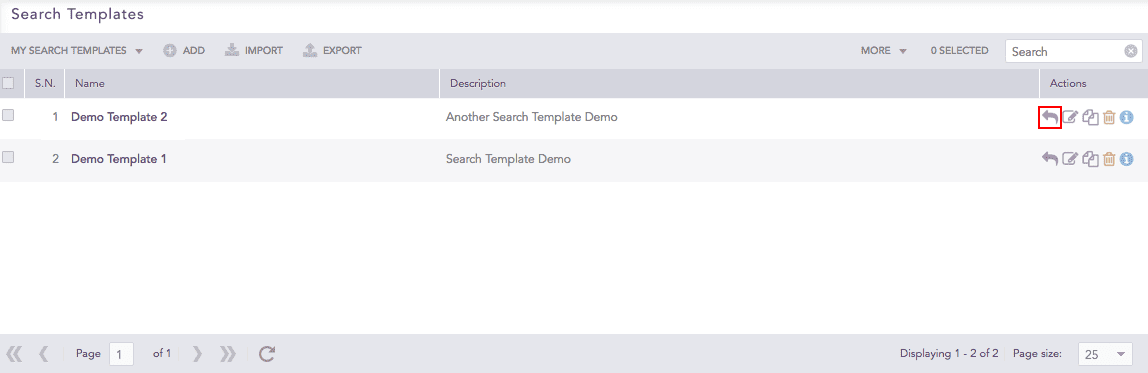
Click the Share Template icon under the Actions column of the template you would like to share.
Search Templates
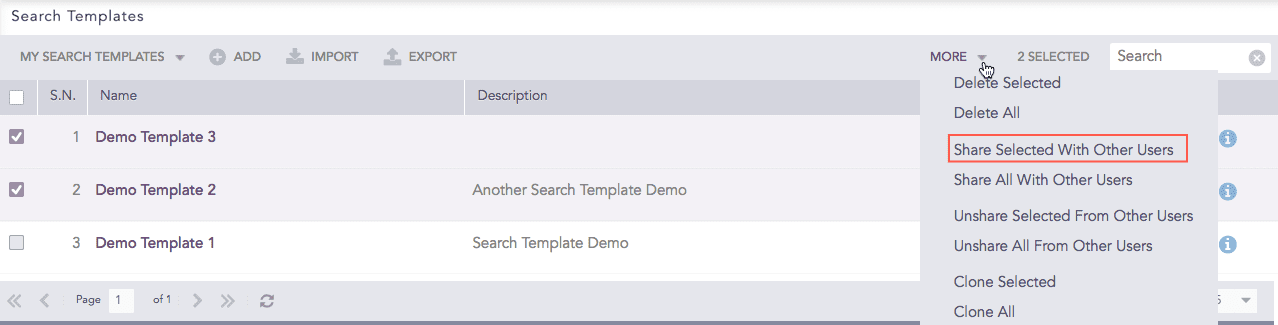
To share multiple Search Templates, select the respective templates. Click the More drop-down and choose Share Selected With Other Users.
Search Templates
To share all the Search Templates, click the More drop-down and choose Share All With Other Users.
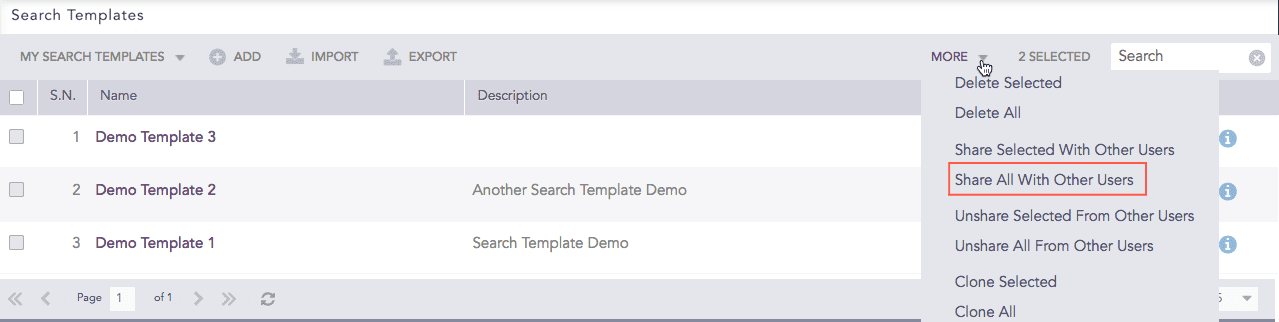
Search Templates
Select the users groups for all the users you want to share the search templates.
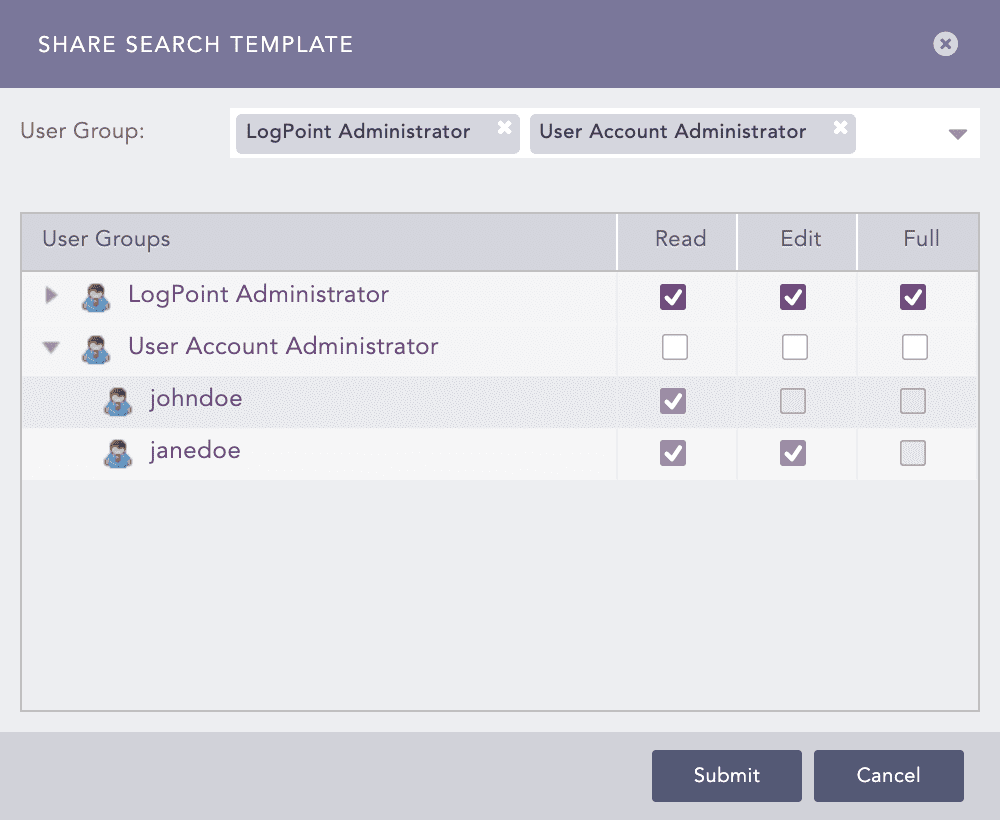
Providing permissions for a shared search template
Select the Read, Edit, or Full permissions for the users. Refer to the introduction section of Sharing Search Templates for details on user permissions.
Click Submit
Note
You can unshare a search template by removing the permissions for all the user groups from the Share Search Template panel.
Go to Settings >> User Accounts from the navigation bar and click Users.
De-activate the user by clicking the De-Activate User icon in the Actions column.
Click Manage De-Activated Users.
Click the Delete icon in the Actions column of the user.
Click Yes.
Note
While deleting a shared search template’s owner, you must delete the shared template or transfer the template’s ownership to another user. You can do this from the Transfer Ownership panel that appears when you attempt to delete a user whose template is being shared.
To transfer the ownership, select a user from the drop-down and click Submit.
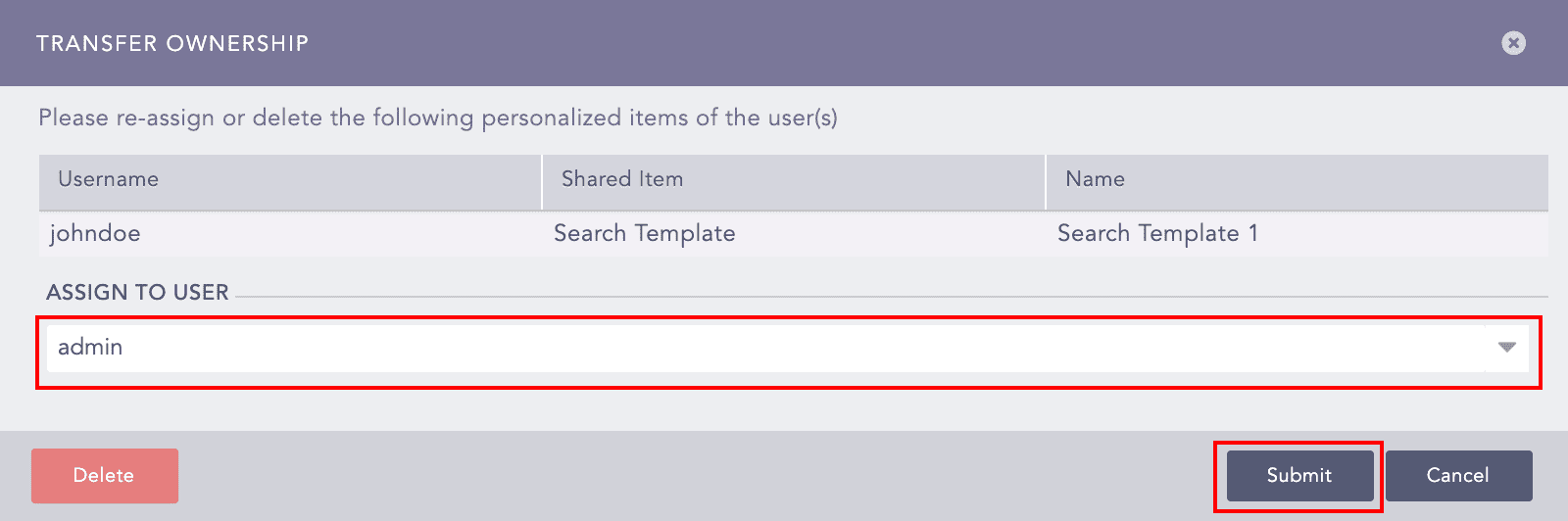
Transferring the Ownership of a Shared Search Template
Note
The transferred template is listed in the Search Templates page in the owner’s system.
To delete the user and user’s template without transferring their ownership, click Delete.
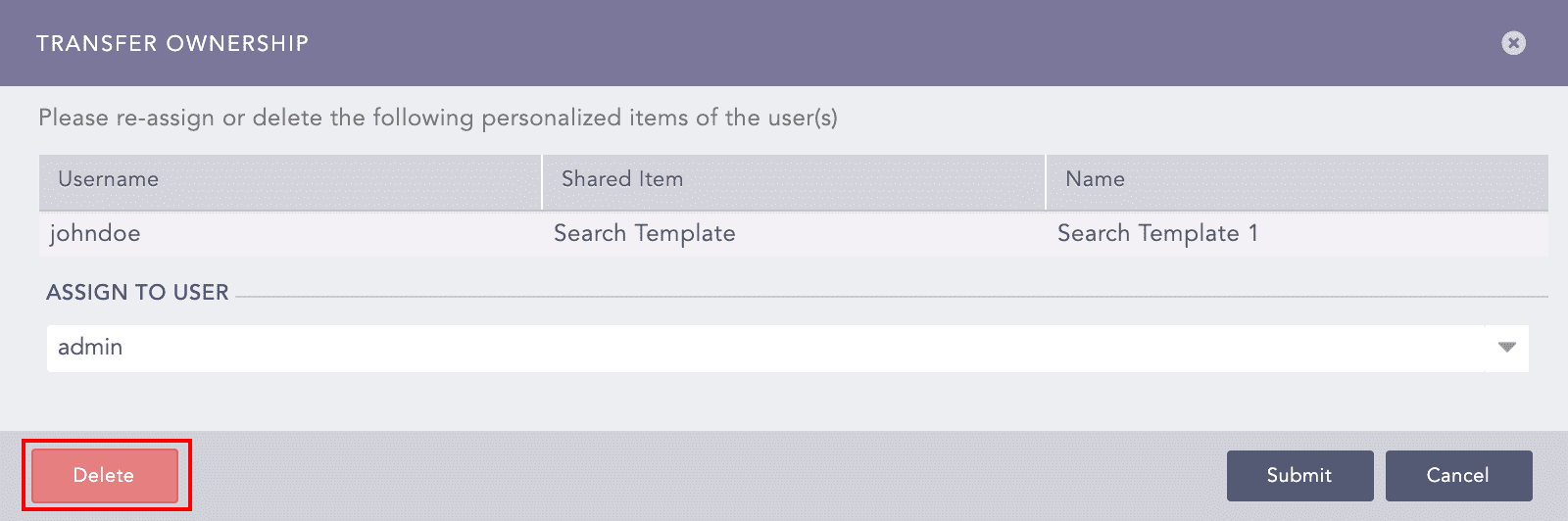
Deleting a Shared Search Template’s Owner
Go to Search Templates from the navigation bar.
Click the Clone icon under the Actions column of the template.
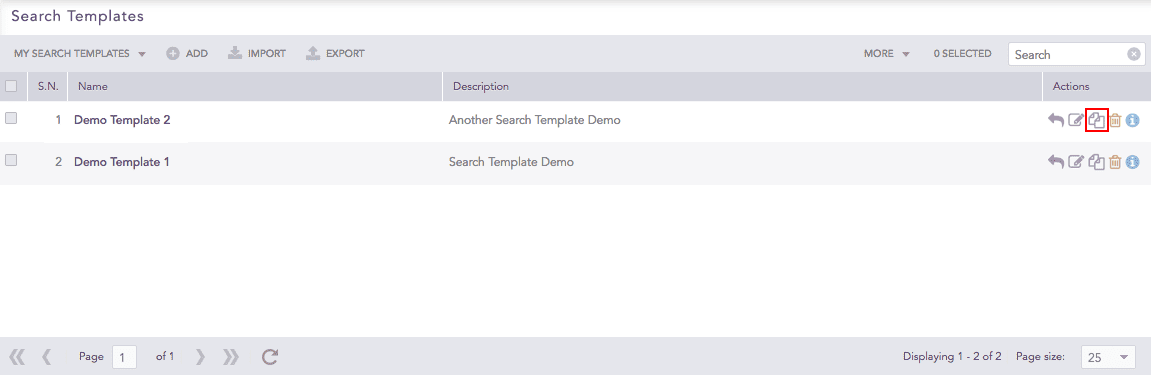
Search Templates
To clone multiple Search Templates, select the templates. Click the More drop-down and choose Clone Selected Templates.
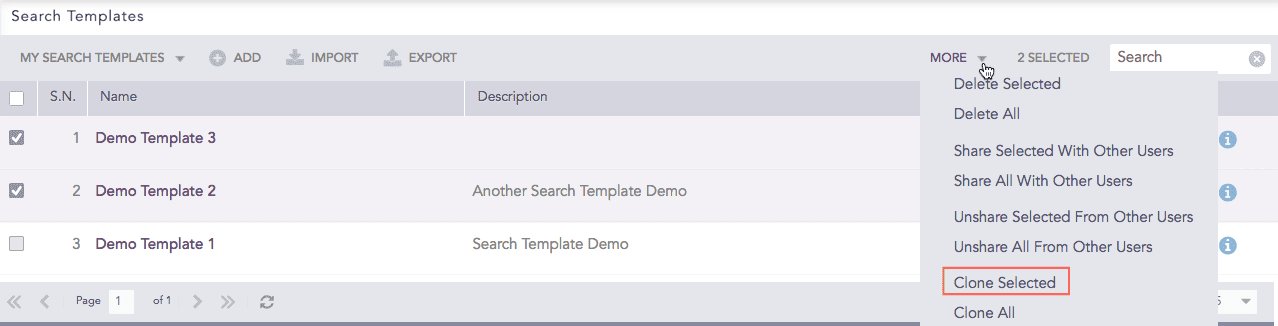
Search Templates
To clone all the Search Templates, click the More drop-down and choose Clone All Templates.
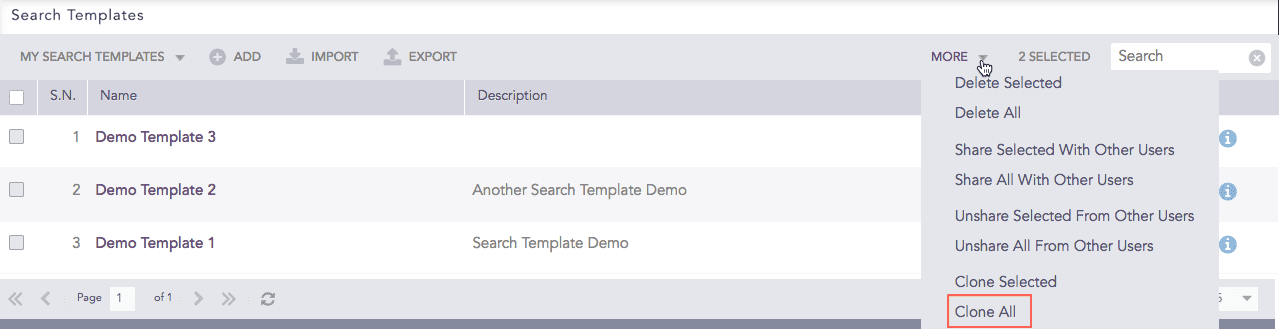
Search Templates
Enter a new Name for the cloned template.
Select the Replace Existing? checkbox to replace an existing template with the same name.
Click Clone.
Go to Search Templates from the navigation bar.
Click the Delete icon under the Actions column of the template.
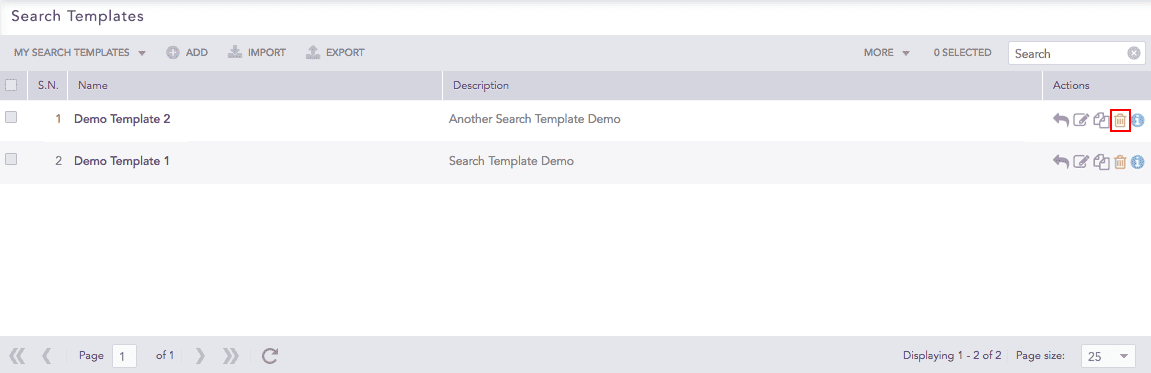
Search Templates
To delete multiple Search Templates, select the respective templates. Click the More drop-down and choose Delete Selected Templates.
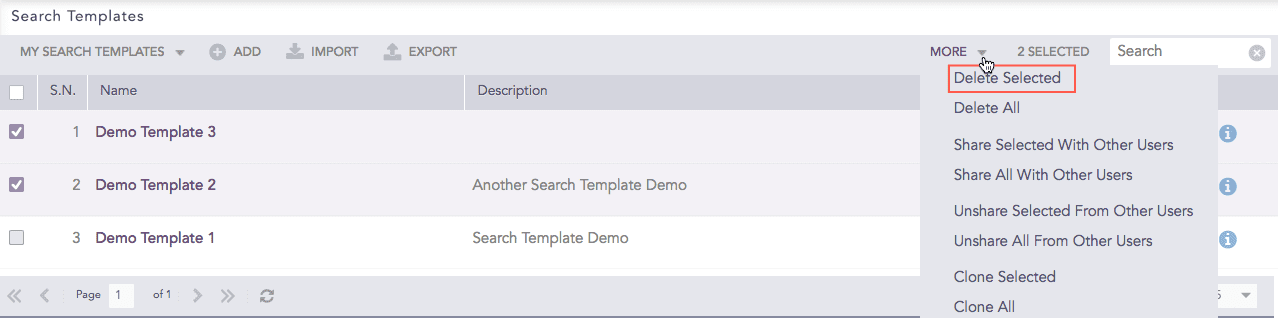
Search Templates
To delete all the Search Templates, click the More drop-down and choose Delete All Templates.
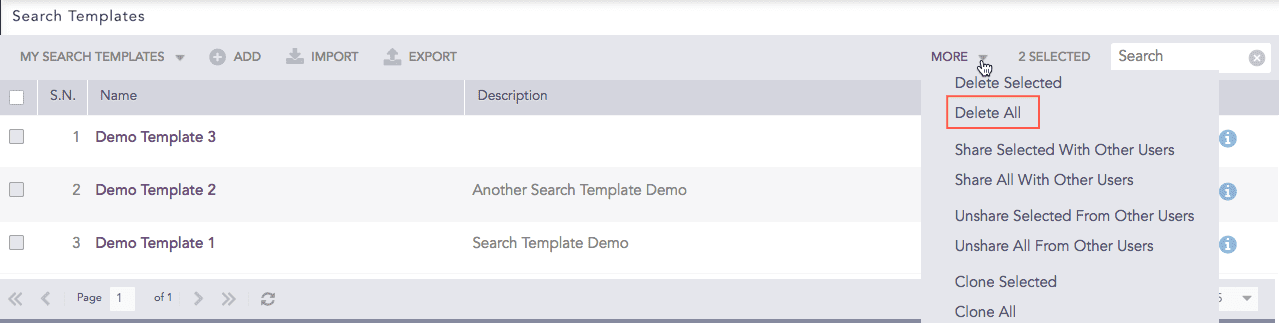
Deleting all Search Templates
A delete confirmation dialog box appears on the screen. Click Yes to proceed.
Go to Search Templates from the navigation bar.
Click the Name of the template.
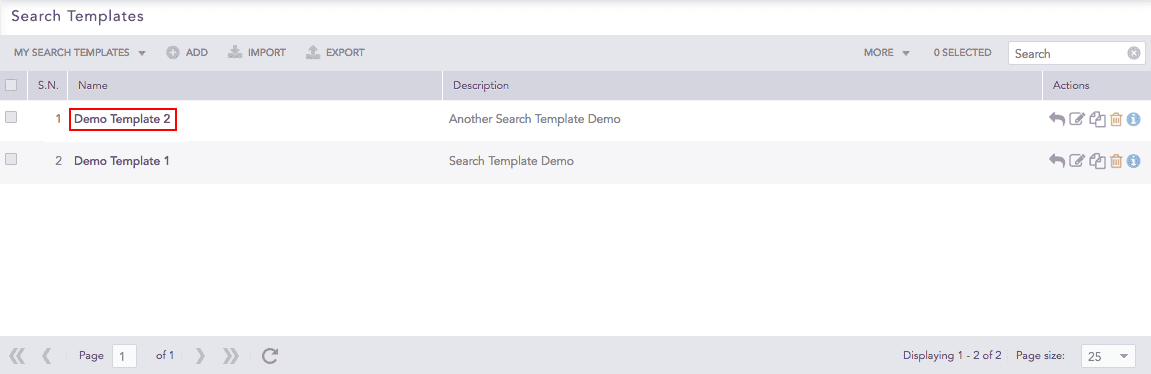
Search Templates
LogPoint forwards you to the Search Template View where you can access the dashboards of the corresponding search template.
Note
You can also view a shared search template using the same method.
From the search template view, you can perform the following tasks:
Click the Plus icon at the top.
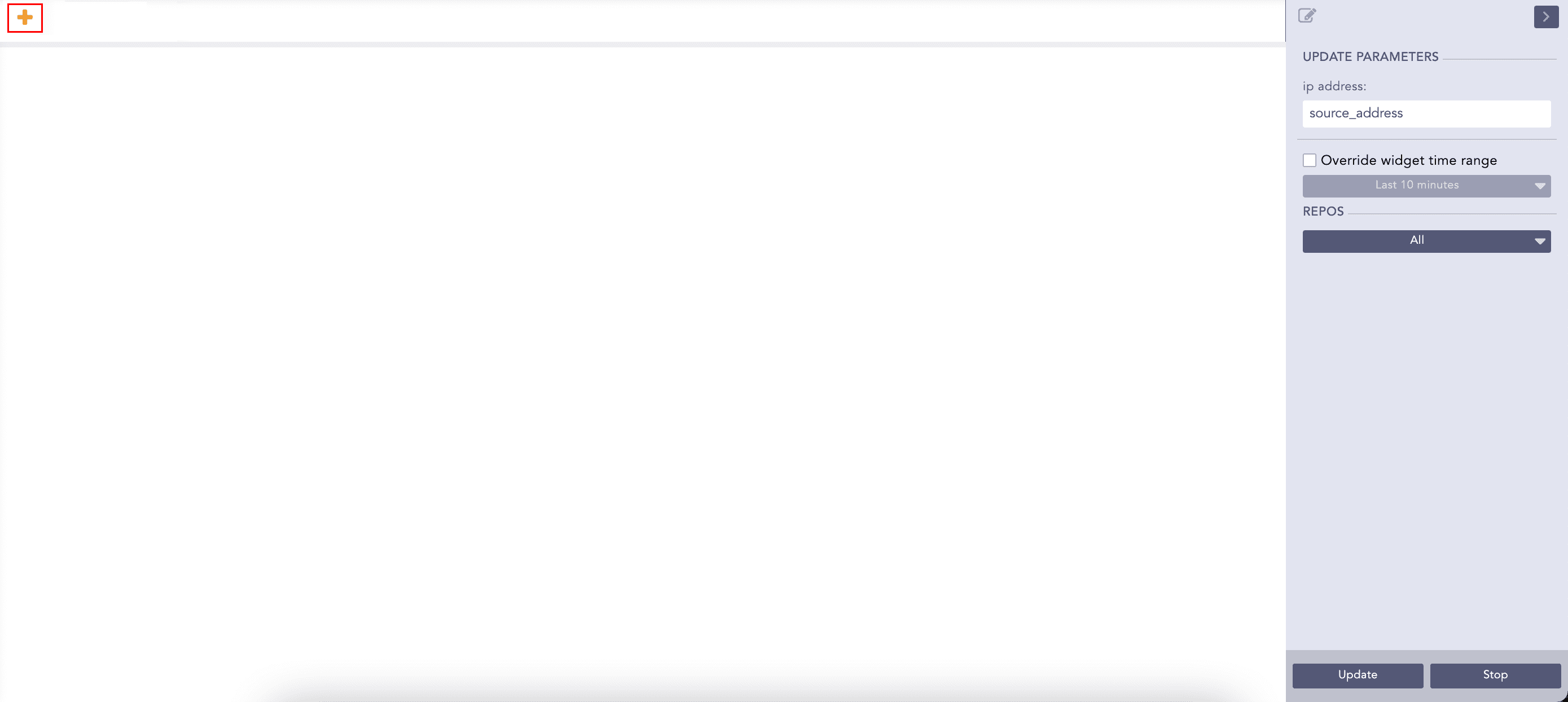
Add Dashboard
Enter the name of the dashboard.
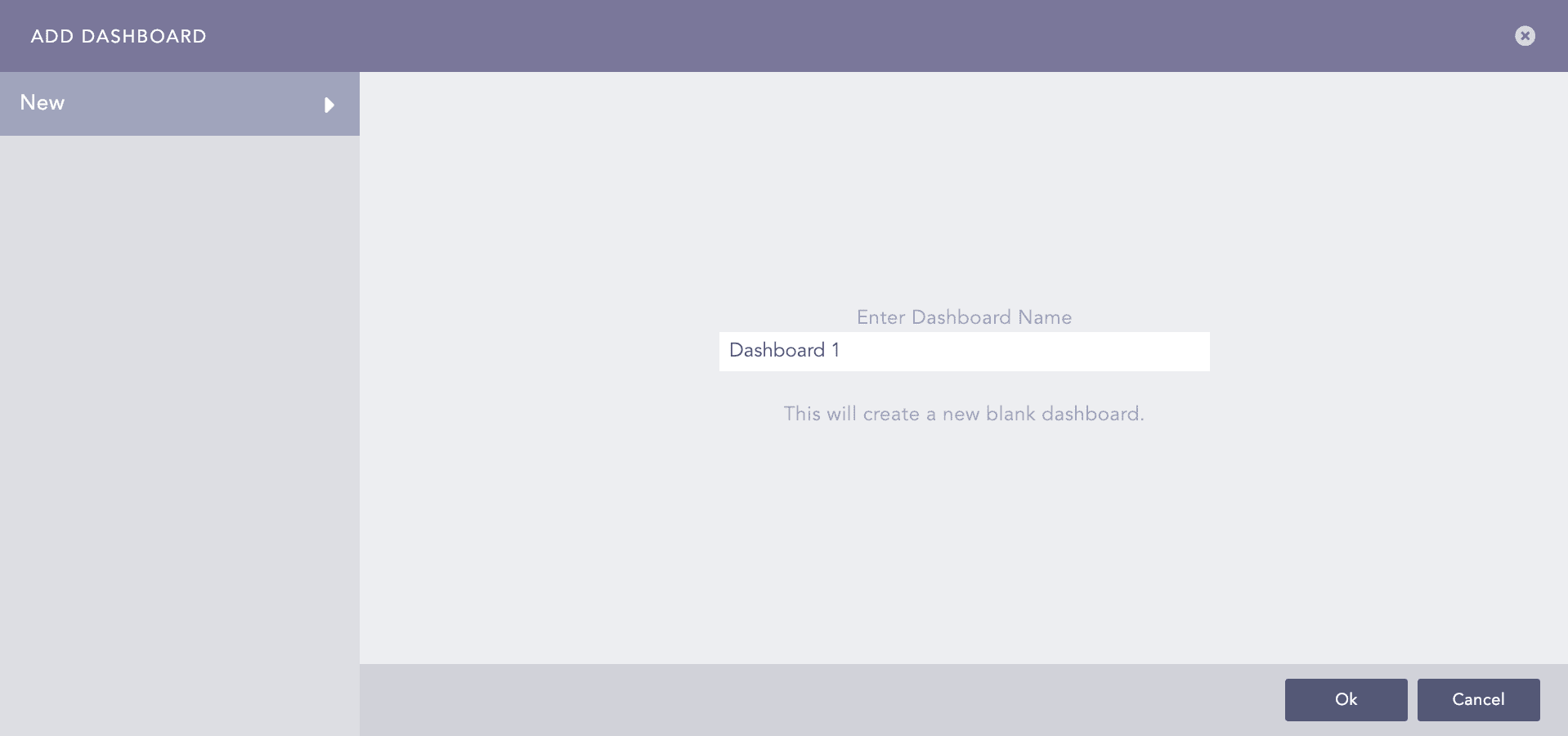
Add Dashboard Panel
Click Ok.
Note
You must add at least one dashboard to use the features of the Search Template View.
Click Add Widget.
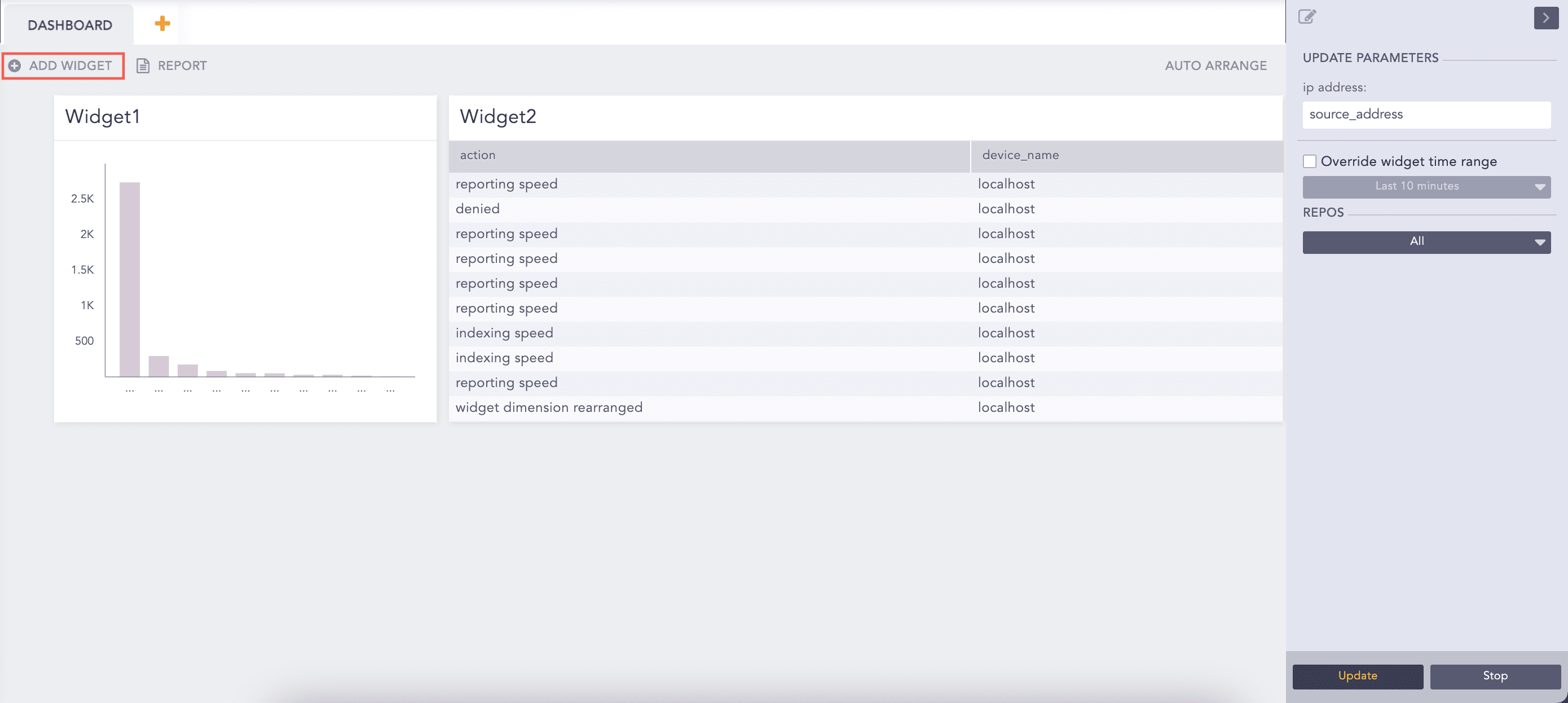
Dashboard
Enter a Name for the widget.
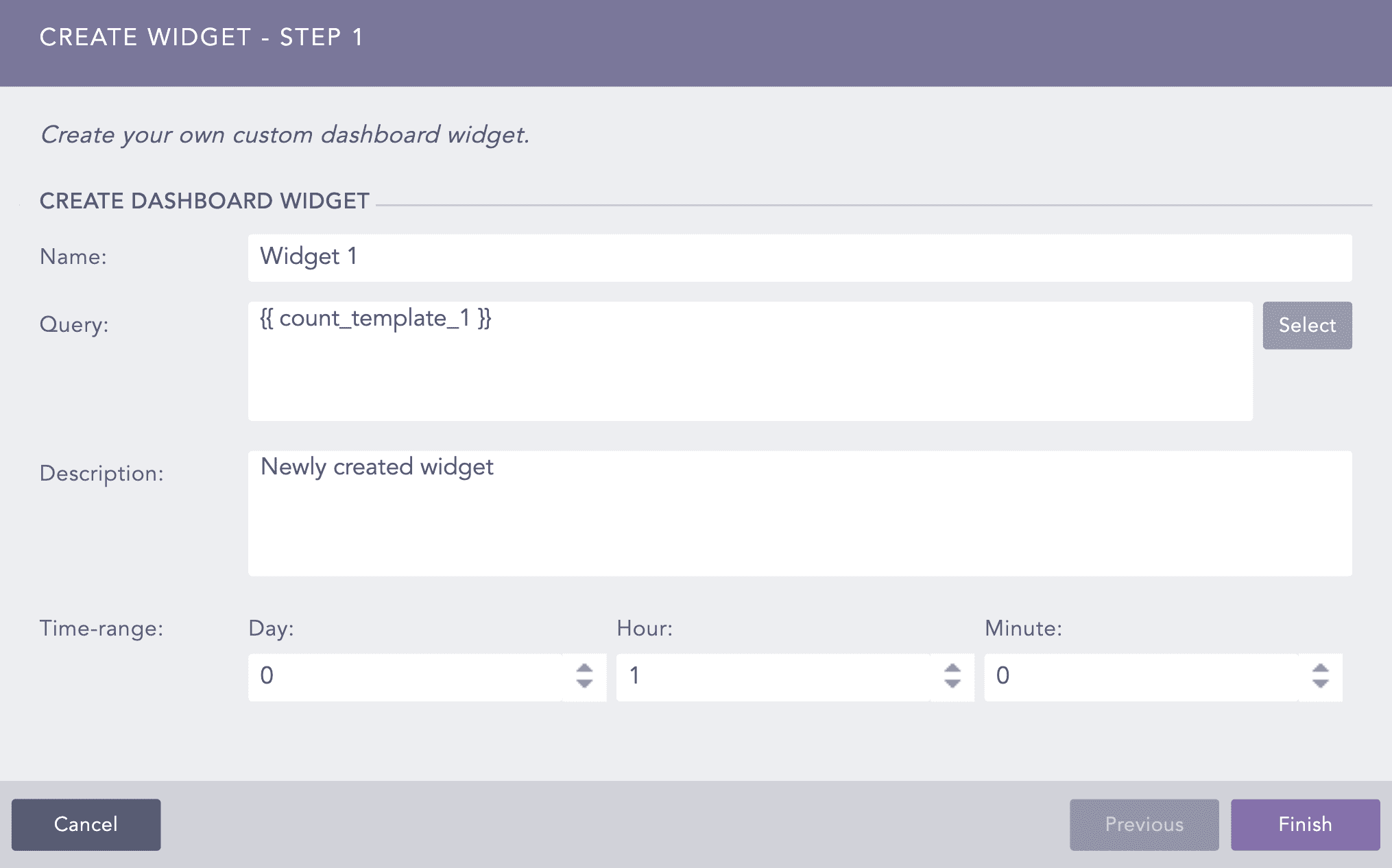
Create Widget Panel
In the Query field, enter the name of a base query within {{ and }}.
Enter a Description and a Time-range for the widget.
Click Report at the top of the dashboard.
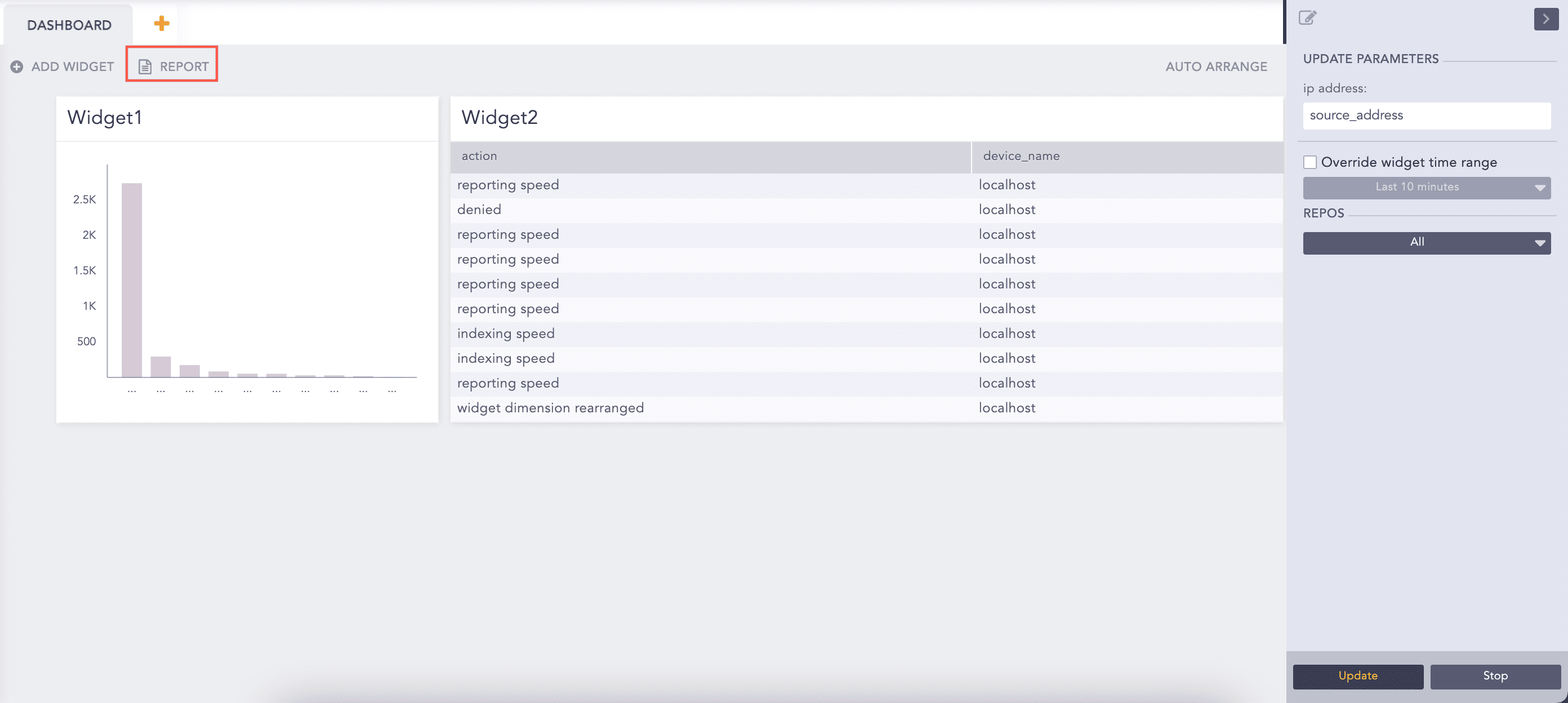
Create Report
Enter the Report Name and an Email address.
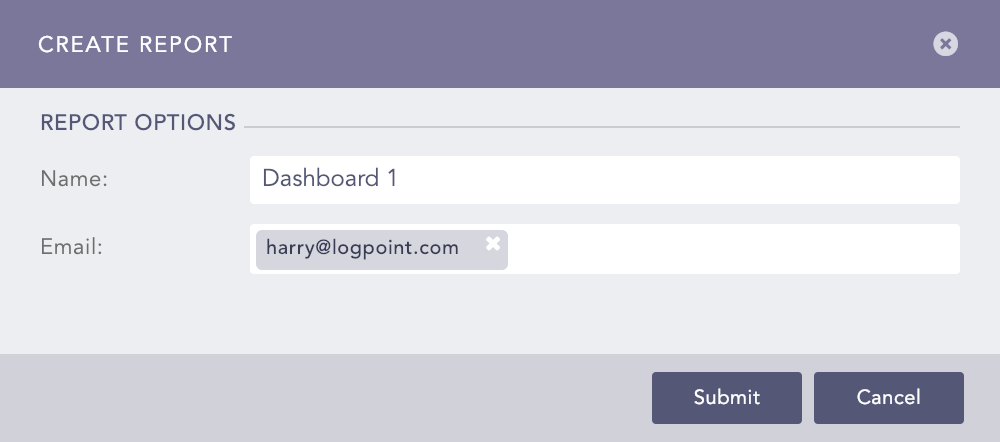
Create Report Panel
Click Submit.
Note
You receive the report in the PDF format.
Click Auto Arrange to automatically arrange the widgets in a presentable form.
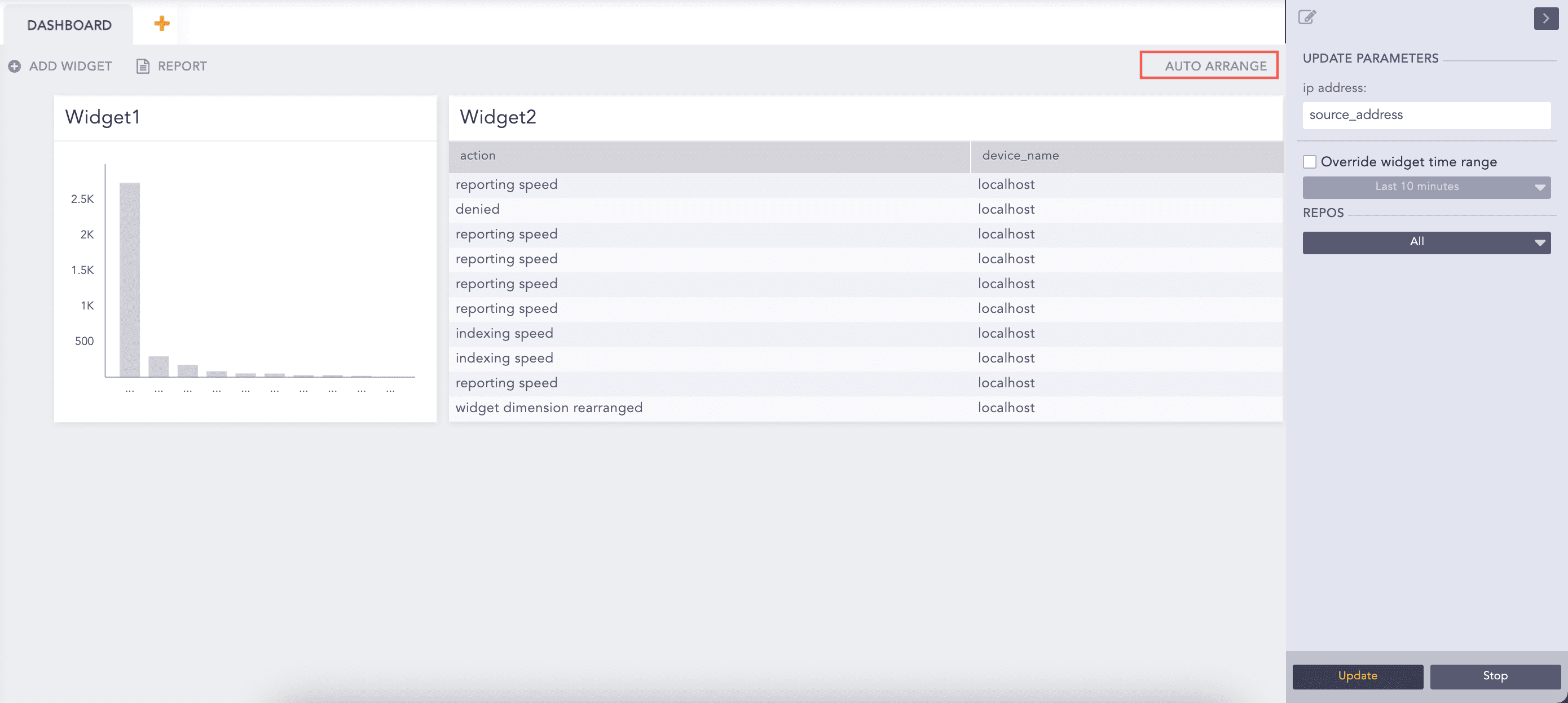
Dashboard
Enter the new values for the variables in the panel to the right.
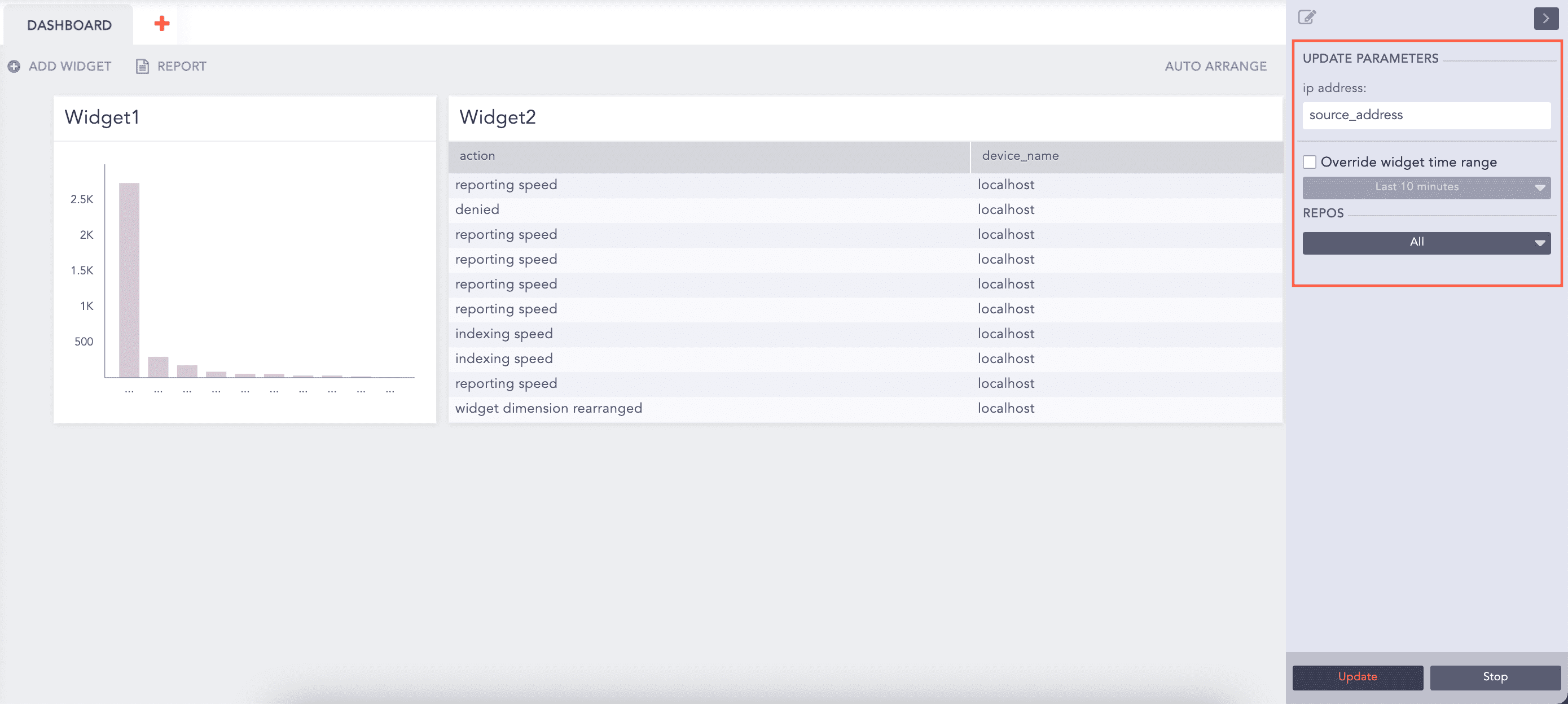
Update Parameters Panel
Click Override widget time range to select a time-range. The time-range you provide in this field takes precedence over the one provided for individual widgets.
Select the Repos in which to perform the search.
Click Update.
After clicking Update, the widgets continuously retrieve their respective logs.
Click the Stop button to stop the widgets from retrieving additional logs. Doing this pauses the visualization of all the widgets. You can only see the already received log results.
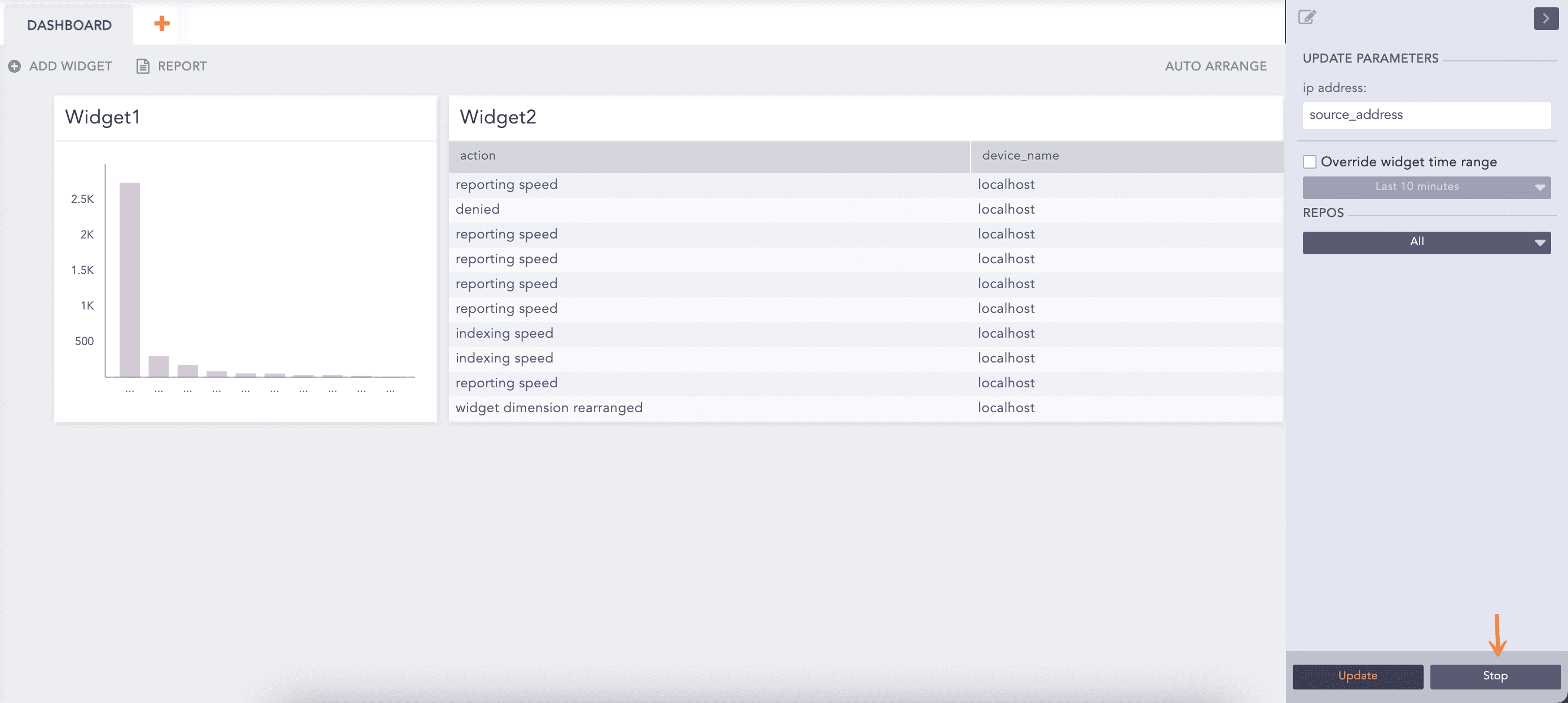
Stop Update
Note
The widgets show updated values only after you click the Update button.
Click Back to redirect to the list view of the search templates.
The search templates remember the last visualization used on the widgets.
You can drill-down on the search results from the non-edit mode of the widget of the search templates.